Using UTM Tracking in D365 Customer Insight - Journey

#utmtraking, #googleanalytics, #customerinsight, #journey

Merry Xmas! 🎉

In today’s data-driven marketing landscape, accurately tracking campaign performance and customer journeys is more critical than ever.

UTM Tracking empowers us to gain precise insights into how audiences interact with our brand across different channels. When combined with the robust capabilities of Dynamics 365 Customer Insights – Journeys, UTM tracking unlocks transformative opportunities for personalization, segmentation, and ROI measurement.

🚀 Now, let's unlock the full potential of your marketing campaigns with UTM tracking in Dynamics 365 Customer Insights – Journeys.

What is UTM?

Source from Wikipedia

Urchin Tracking Module (UTM) parameters are five variants of URL parameters used by marketers to track the effectiveness of online marketing campaigns across traffic sources and publishing media. They were introduced by Google Analytics' predecessor Urchin and, consequently, are supported out of the box by Google Analytics. The UTM parameters in a URL identify the campaign that refers traffic to a specific website, and attribute the browser's website session and the sessions after that until the campaign attribution window expires to it. The parameters can be parsed by analytics tools and used to populate reports.

This example URL has four of the five UTM parameters highlighted:

https://www.example.com/page?utm_content=buffercf3b2&utm_medium=social&utm_source=snapchat.com&utm_campaign=buffer

There are five different UTM parameters, which may be used in any order: Source from Wikipedia

Parameter
Purpose
Example

utm_source

Identifies which site sent the traffic, and is a required parameter.

utm_source=google

utm_medium

Identifies what type of link was used, such as email or pay-per-click advertising.

utm_medium=ppc

utm_campaign

Identifies a specific product promotion or strategic campaign.

utm_campaign=spring_sale

utm_term

Identifies search terms.

utm_term=running+shoes

utm_content

Identifies what specifically was clicked to bring the user to the site, such as a banner ad or a text link. It is often used for A/B testing and content-targeted ads.

utm_content=logolink or utm_content=textlink

Purpose and function:

UTM parameters are used to communicate important information about where audiences came from to analytical tools such as Google Analytics. They are essential for answering the question, "Where did my audiences come from?". And, when an audience clicks a link containing UTMs and lands on the corresponding landing page, Google Analytics reads the parameters from the URL and sorts the traffic into the appropriate classification or "bucket".

So, how to configure the UTM Tracking in D365 Customer Insight Journey? Let's move on to the next section.

UTM Tracking in D365 Customer Insight - Journey

This section includes 2 parts:

  • Enable UTM Tracking

  • Run Journey and Tracking on Google Analytics. This part requires that your landing page/ website must be tracked by Google Analytics before. And, in my post, I've used my Blog and was also tracked by Google Analytics.

Enable UTM Tracking

This is the 1st part.

In the Customer Insight - Journeys app, in the Settings area, select the Feature switches, then turn on the UTM Tracking by following the pictures

Enable UTM Tracking

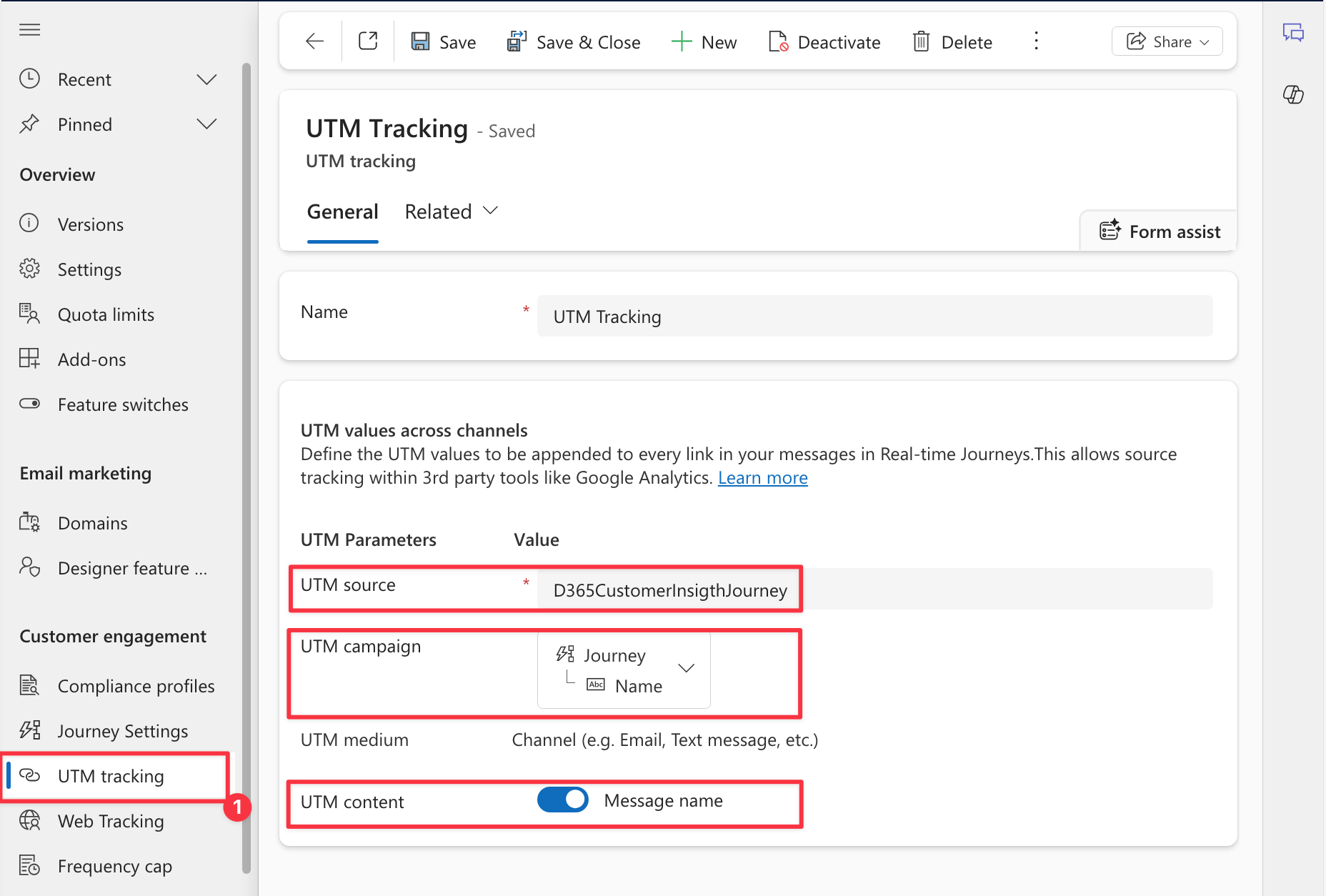
After that, you need to create a UTM Tracking mapping record.

  • UTM source: input the marketing source according to your convention. E.g: I input the source name "D365CustomerInsightJourney".

  • UTM campaign: this utm_campaign was mapped with the field Name in the table Journey by default. Note: You can create a custom field in the table Journey (msdynmkt_journey), then use this field to map with the UTM campaign parameter.

  • UTM medium: The channel that the UTM record is used on.

  • UTM content: Captures UTM content as message name. Note: If you turn it off, UTM content won't be added to the URL link.

UTM Tracking record

How to use UTM Parameters?

When you enable UTM tracking, you see the default values for each UTM parameter. These are the values that are added to all URLs that you add to your emails or text messages, or a custom message channel.

For example, I configured email marketing as below: I just input the URL of my blog: https://dyns.ntd.asia/power-dynamics

Configure UTM in email

For another, we can configure UTM in the text message:

UTM in the Text Message

Run Journey and send Email marketing to the audience

After completing the Email configuration, I will create a sample Journey to send Email marketing (above step) to the audience for testing.

Sample Journe - Send Email Marketing

Checking now...

This is the 2nd part: Run Journey and Tracking on Google Analytics

Email Marketing and URL

Once I clicked on my blog logo, the URL was populated with some UTM parameters, although my original URL is https://dyns.ntd.asia/power-dynamics.

  • utm_medium=email

  • utm_term=N%2FA

  • utm_source=D365CustomerInsigthJourney

  • utm_content=Email%201 (email name: "Email 1")

  • utm_campaign=PowerDynsJourney

Check the URL once user click the URL.

Check on my tool: Google Analytics

I was using the Traffic Acquisition report.

My campaign source "D365CustomerInsightJourney" was tracked by Google Analytics as below, and this report also displays that the utm_medium is Email (because I've used the email channel).

Traffic Acquisision report

Email insight from the D365 Customer Insight Journey:

And I would like to share some Email Insight dashboard from D365 Customer Insight

Email Insight - Overview

Heatmap report

Heatmap

Ya.. That's all from my side. 🚀

Thank you and Hopping well. [NTD]yns.Asia

Last updated

Was this helpful?